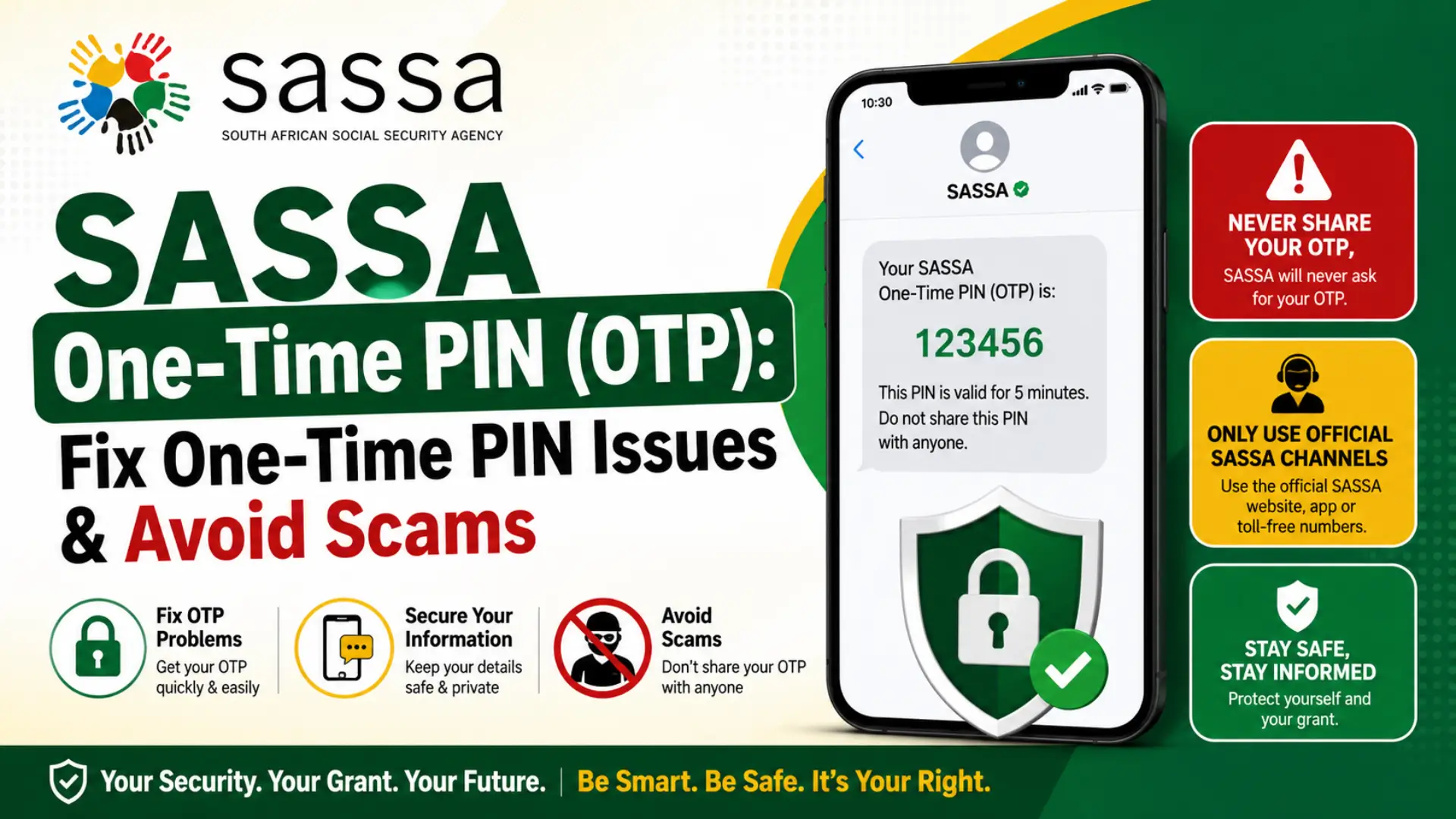
SASSA One-Time PIN (OTP): Fix One-Time PIN Issues & Avoid Scams

SASSA One-Time PIN (OTP) is a vital security feature protecting millions of South African grant beneficiaries from fraud and identity theft. Whether you’re appealing an SRD R350 decline, updating your banking details, or verifying your identity, understanding how the OTP system works can save you hours of frustration. This comprehensive guide covers everything you need to know from requesting your PIN correctly to troubleshooting common problems like missing SMS codes, invalid entries, and expired tokens. Learn the official steps, avoid dangerous scams, and get your grant access back on track with expert-backed solutions for 2026.
What Is a SASSA One-Time PIN (OTP)?
A SASSA One-Time PIN (OTP) is a temporary, single-use numeric code sent to your registered mobile phone number via SMS. SASSA uses this OTP as a critical security layer to verify your identity before allowing access to sensitive grant-related actions on the official SRD (Social Relief of Distress) portal.
Think of the OTP as a digital key it proves that the person trying to access or change your grant information is in physical possession of the phone number registered to your SASSA application. Without this PIN, unauthorized individuals cannot make changes to your banking details, appeal a rejection, or complete identity verification steps.
When Does SASSA Send an OTP?
SASSA sends an OTP in several key situations. Understanding when and why you receive this PIN helps you recognize legitimate requests and avoid falling victim to scams.
1. SRD Grant Appeals
When you appeal a declined SRD R350 grant application, SASSA requires you to verify your identity via OTP before you can submit your appeal. This ensures that only the legitimate applicant can challenge a decision.
2. Updating Banking Details
If you need to change or update your bank account information for receiving grant payments, SASSA sends an OTP to confirm the request is coming from you.
3. Updating Contact Information
When you change the phone number linked to your SASSA application, the system sends an OTP to your old or new number to verify the change.
4. Identity Verification Processes
During identity verification flows especially when SASSA cross-references your details with the Department of Home Affairs database — an OTP may be required to confirm you are the person initiating the check.
5. SRD Status Check (Certain Flows)
Some status check processes or secure portal logins may trigger an OTP for additional verification, particularly when accessing detailed account information.
How the SASSA OTP Process Works (Step-by-Step)
Here is exactly what happens when SASSA sends you an OTP, and what you need to do:
Step 1: Initiate the Action
Visit the official SASSA SRD portal at srd.sassa.gov.za and navigate to the relevant section whether it’s checking your status, appealing a decline, or updating your details. Enter your 13-digit South African ID number and your registered 10-digit phone number.
Step 2: Request the OTP
Click the “Send PIN” or “Request OTP” button on the portal. This tells SASSA’s system to generate a unique, time-sensitive code and send it to your registered mobile number via SMS.
Step 3: Receive the OTP via SMS
Within a few minutes, you should receive an SMS containing a numeric code (typically 4–6 digits) from SASSA. The message will clearly identify itself as coming from SASSA or the SRD system.
Step 4: Enter the OTP on the Portal
Return to the SASSA portal and type the exact OTP into the designated field. Be careful OTPs are case-sensitive and must be entered precisely as received.
Step 5: Complete Your Action
Once the OTP is verified, the portal will allow you to proceed with your intended action whether that’s submitting an appeal, updating banking details, or viewing your status.
Common SASSA OTP Problems and How to Fix Them
OTP issues are among the most frequently reported problems by SASSA grant applicants. Below are the most common scenarios, why they happen, and exactly how to resolve them.
Problem 1: OTP Not Received
Symptoms: You clicked “Send PIN” but no SMS arrived after several minutes.
Common Causes & Solutions:
When to escalate: If you still haven’t received the OTP after 24 hours, contact SASSA directly via WhatsApp (082 046 8553) or the toll-free call centre (0800 60 10 11).
Problem 2: OTP Says “Invalid” or “Expired”
Symptoms: You received the OTP, entered it correctly, but the portal says it’s invalid or has expired.
Common Causes & Solutions:
Problem 3: OTP Sent to Old/Wrong Phone Number
Symptoms: You no longer have access to the phone number registered with SASSA, so you cannot receive the OTP.
Solution:
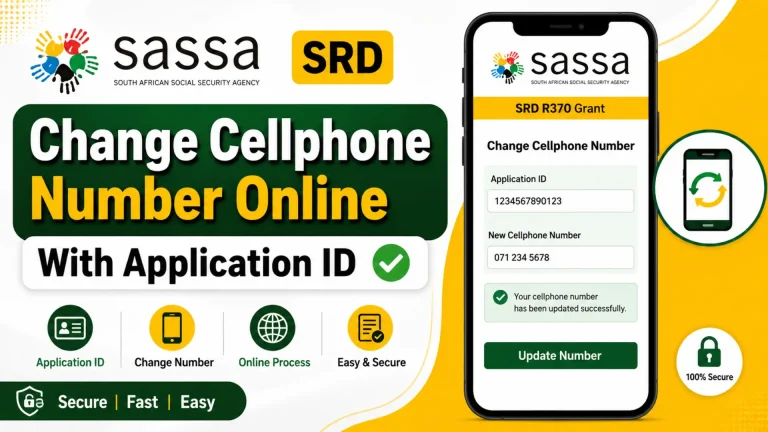
- Visit the official SASSA contact update portal: srd.sassa.gov.za/sc19/contact
- Enter your 13-digit ID number and your 6-digit Application ID (AppID)
- Follow the prompts to update your phone number
- Save the confirmation
- Wait 24 hours for the system to process the update before attempting to request a new OTP
Important: If you cannot access the portal because the old number is required for login, you may need to visit a SASSA office in person with your original ID document to update your contact details.
Problem 4: OTP Works on Mobile But Not on Desktop (or Vice Versa)
Symptoms: You receive the OTP on your phone, but entering it on your desktop browser fails — or the desktop portal won’t even send the OTP.
Common Causes & Solutions:
Problem 5: “Send PIN” Button Does Nothing
Symptoms: You click the “Send PIN” button, but nothing happens no loading indicator, no confirmation, no SMS.
Solutions:
- Refresh the page and try again
- Switch networks if on Wi-Fi, try mobile data (or vice versa)
- Clear browser cache and cookies completely
- Try Incognito/Private mode
- Switch devices if on desktop, try mobile; if on mobile, try desktop
- Try during off-peak hours early morning (6–8 AM) or late evening (after 8 PM) when server traffic is lower
SASSA OTP Security: How to Protect Yourself from Scams
SASSA will NEVER ask you to share your OTP via WhatsApp, SMS, phone call, or email. This is the single most important rule to remember.
Red Flags: Recognize a Scam Immediately
| Scam Tactic | What to Do |
|---|---|
| Someone calls or messages asking for your OTP | Hang up / Ignore. SASSA never requests OTPs this way. |
| “Pay R50 to unlock your OTP” or “Pay to fix your status” | Report immediately. SASSA services are 100% free. |
| Links that don’t end in .gov.za | Close immediately. Only use srd.sassa.gov.za and sassa.gov.za. |
| WhatsApp numbers other than 082 046 8553 | Block and report. This is the only official SASSA WhatsApp for SRD. |
| Messages claiming your grant will be cancelled unless you share your OTP | Ignore. This is a pressure tactic used by scammers. |
What SASSA Will Never Do
- Call you and ask for your OTP
- Send a WhatsApp message requesting your OTP
- Ask you to forward your OTP to another number
- Charge you money to “generate” or “unlock” an OTP
- Ask for your banking PIN or CVV
What You Should Never Share
| Information | Why It’s Dangerous |
|---|---|
| OTP (One-Time PIN) | Gives scammers access to change your banking details and steal your grant |
| SASSA PIN | Can be used to access your grant account |
| Banking details | Scammers can redirect your payments |
| ID number + phone number combo | Enough information for identity theft and fraud |
If you encounter a scam, report it immediately to SASSA at 0800 60 10 11 or email [email protected].
Official SASSA Contact Channels for OTP Issues
If you’ve tried all troubleshooting steps and still cannot receive or use your OTP, use these official channels:
| Channel | Details | Best For |
|---|---|---|
| SRD Portal | srd.sassa.gov.za | Status checks, appeals, updating details |
| 082 046 8553 | Quick status checks, general queries | |
| Call Centre | 0800 60 10 11 | Complex issues, personalized help (Mon–Fri, 8 AM–4 PM) |
| [email protected] | Written follow-ups, documentation | |
| SASSA Office | Find nearest at sassa.gov.za | Biometric verification, in-person updates |
Frequently Asked Questions (FAQs)
How long is a SASSA OTP valid?
SASSA OTPs are typically valid for a few minutes after being sent. If you don’t use it quickly, it will expire and you’ll need to request a new one.
Can I request multiple OTPs?
Yes, but avoid requesting them in rapid succession. Wait at least 5–10 minutes between requests. Requesting too many OTPs too quickly can cause system delays or temporary blocks.
What if I lost the phone number I registered with?
Update your contact details via srd.sassa.gov.za/sc19/contact using your ID and Application ID. If you cannot access the portal, visit a SASSA office with your original ID.
Why does the OTP say “expired” even though I just received it?
This can happen if your device’s date and time are incorrect, or if there is a delay between SASSA sending the OTP and your network delivering it. Enable automatic date/time on your phone and request a fresh OTP.
Can someone else receive my OTP on my behalf?
No. The OTP is sent only to the registered phone number. If someone else has access to that number (e.g., a shared SIM), they could receive it — which is why you should never share your registered number with untrusted individuals.
Is the SASSA OTP the same as my SASSA card PIN?
No. The OTP is a temporary SMS code used for online verification. Your SASSA card PIN is a permanent code used for ATM withdrawals and purchases. Never confuse the two or share either.
What should I do if I suspect someone stole my OTP?
Immediately contact SASSA at 0800 60 10 11 and report the incident. Also check your SRD portal to see if any unauthorized changes were made to your banking details or application.
Final Tips for a Smooth OTP Experience
- Always use the official SASSA portal. Bookmark srd.sassa.gov.za to avoid phishing sites.
- Keep your registered phone number active. If you change numbers, update SASSA immediately.
- Don’t share your OTP with anyone. Not family, not “helpers,” not “SASSA agents” who call you.
- Act quickly when you receive an OTP. Enter it on the portal as soon as possible to avoid expiration.
- Document your Application ID (AppID). You’ll need it for updates and troubleshooting.
- Be patient during peak times. Month-ends and grant payment days see heavy traffic. Try early mornings or late evenings.
Conclusion
Protect your SASSA grant by understanding OTP security, using official channels only, and never sharing your PIN. Stay vigilant, act fast, and keep your registered number updated.